
Google Ads Conversion Tracking Not Working? How to Test & Fix It
If your Google Ads shows 0 conversions, but GA4 shows events, your tracking is broken.
This guide shows you how to manually test Google Ads conversion tracking step-by-step.
But here's the catch: Most issues are caused by consent mode, timing, or missing signals — not the tag itself.
You can test it manually below, or run a free scan to instantly detect what's broken across all consent states. If GA4 and Ads diverge, read why Google Ads shows 0 conversions but GA4 shows events. For cookieless scenarios, see Google Ads conversion tracking without cookies.
Most sites fall into one of these
- ❌ Tracking fires before consent (violation)
- ❌ Tracking never fires after consent
- ❌ Tracking fires but Google Ads can't attribute it
- ❌ Missing gclid or consent signals
This guide helps you debug it manually. Or skip the manual work:
Run automated diagnostic →Find out in 30 seconds:
- Are conversions firing?
- Is consent blocking them?
- Is Google Ads receiving them?
🔍 Scan your site and see exactly why conversions aren't showing.
Run Free Scan →Quick tools (use while debugging)
- Not sure what
gcs=G111means? Decode gcs value → - If your gclid is missing, conversions cannot be attributed. Check if your gclid is missing (this breaks conversions) →
- Not sure if your site even has Consent Mode? Run a quick check →
When Should You Test Google Ads Conversion Tracking?
- After implementing conversion tags
- After adding Consent Mode v2
- When conversions drop suddenly
- When GA4 and Google Ads diverge
- Before launching campaigns
Quick 5-Minute Test (TL;DR)
If you just want to verify conversions fire after consent:
- Open your site in incognito (Ctrl+Shift+N or Cmd+Shift+N)
- Open DevTools (F12) → Network tab → check Preserve log
- In the filter box type:
pageadorgtm - Click Accept on your consent banner
- Navigate to your conversion page (thank-you, checkout complete)
- Look for requests to
google.com/pageadorgtag/jswith your conversion label in the URL
If you see conversion requests after accepting consent, tracking is firing. If you see them before accepting, that is a violation. If you see them in neither case, the tag is not installed or is blocked by consent.
Where to find your conversion label
Google Ads → Tools & Settings → Conversions → click your conversion action → Tag setup → you will see the label like AW-123456789/AbC-dEfGhIj. Use that in the Network filter or search for it in the request URL.
Not seeing conversion requests?
Run a free scan to check:
- If your conversion tag is firing
- If consent is blocking it
- If Google Ads can actually attribute it
1. Basic test (Tag Assistant + Network)
Google Ads conversion tracking can appear to work in several ways that are actually misleading:
The GA4 vs Google Ads Confusion
Many sites see conversions in Google Analytics 4 (GA4) and assume Google Ads conversion tracking is working. But GA4 and Google Ads use different tracking systems. GA4 might fire events, but if Consent Mode v2 isn't configured correctly, those events never reach Google Ads for attribution.
This is why Google Ads shows 0 conversions but GA4 shows events - the tracking code exists, but consent configuration prevents proper attribution.
This is the #1 issue we see.
Most sites have tracking installed — but broken due to consent mode.
Run a quick scan to verify your setup in seconds:
Check My Tracking →The "Works in Testing" Problem
Conversion tracking might work perfectly when you test it manually (you're logged in, cookies are already set, consent was granted previously). But for new users who haven't accepted consent yet, or users who reject cookies, conversions may not fire or attribute correctly.
The Silent Failure
Google Ads might show some conversions, leading you to think everything is working. But if conversions only fire for users who accepted consent, and 30% of users reject cookies, you're losing 30% of conversion data - and Google Ads is optimizing on incomplete information.
2. Real conversion test
The most reliable way to test Google Ads conversion tracking is to watch network requests in real time. No tools to install. Just Chrome or Edge.
This is the most reliable way to test Google Ads conversion tracking without using external tools.
Step 1: Open a Fresh Browser Session
Open your website in a new incognito or private window. Chrome: Ctrl+Shift+N (Windows) or Cmd+Shift+N (Mac). Edge: Ctrl+Shift+P. This simulates a new user with no cookies and no prior consent. Testing in a normal window where you already accepted consent will not show you real behavior.
Step 2: Open DevTools Network Tab
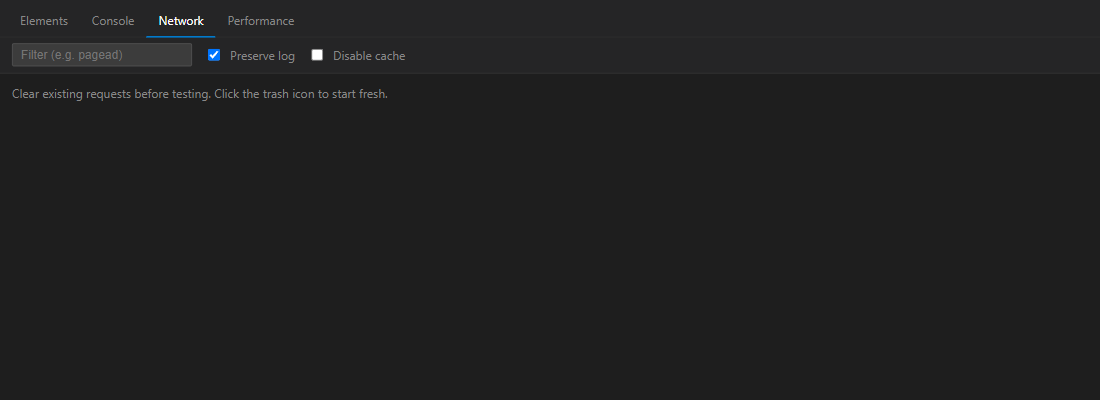
Press F12 (Windows/Linux) or Cmd+Option+I (Mac). Click the Network tab. Check the box for Preserve log. Without this, requests disappear when you navigate and you will miss conversion calls.
Clear existing requests (trash icon or right-click → Clear) so you start fresh.
Step 3: Filter for Google Ads Requests
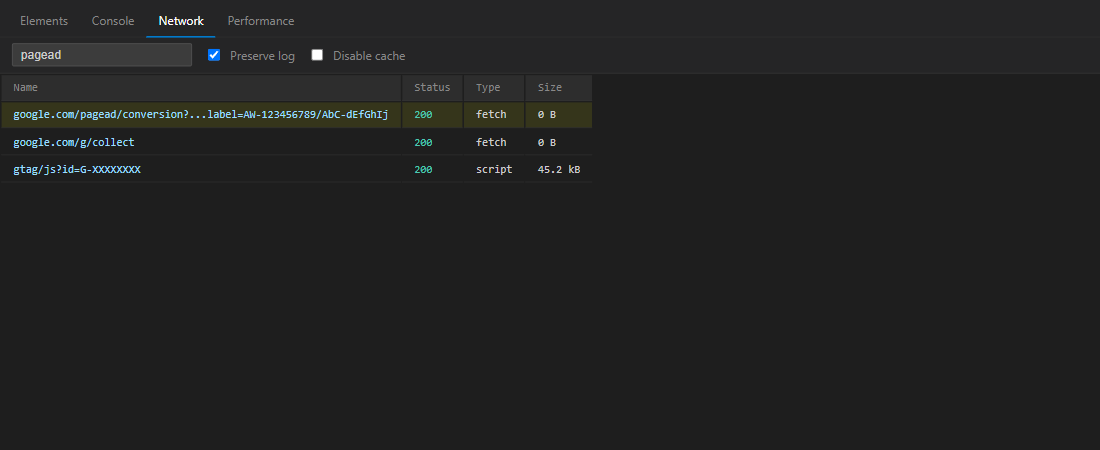
In the filter box at the top of the Network tab, type one of these:
pagead– catches google.com/pagead and conversion requestsdoubleclick– catches stats.g.doubleclick.net (GA4/Ads)gtag– catches gtag/js and collect callsgoogle.com/g/collect– GA4/Ads measurement hits
Conversion requests often go to google.com/pagead/conversion or appear as google.com/g/collect with en=conversion in the payload.
Step 4: Accept Consent
Click "Accept" or "Allow" on your consent banner. Watch the Network tab - you should see new Google Ads requests appear after accepting consent. If no requests appear, conversion tracking might not be firing.
Step 5: Trigger a Conversion
Navigate to a page where conversions should fire (e.g., thank-you page, checkout completion). Watch the Network tab for conversion tracking requests.
What to look for:
- Requests containing your conversion label (e.g.,
AW-123456789/AbC-dEfGhIj) - Requests with
event=conversionparameter - Requests sent to
google.com/pagead/conversion
If you see these requests after accepting consent, conversion tracking is firing. If you don't see them, conversions aren't firing - which could be due to consent configuration, timing issues, or the conversion tag not being installed correctly.
3. GA4 vs Ads mismatch checks
Once you see conversion requests in the Network tab, you need to verify they contain the correct consent signals.
Step 1: Click on a Conversion Request
In the Network tab, click on a request that looks like a conversion (contains your conversion label or "conversion" in the URL).
Step 2: Check Request Headers and Parameters
Go to the "Payload" or "Query String Parameters" tab. Look for:
label- Your conversion label (e.g.,AW-123456789/AbC-dEfGhIj)value- Conversion value (if configured)currency_code- Currency (if configured)gclid- Google Click ID (if from a Google Ads click)
If these parameters are present, the conversion request is being sent. However, this doesn't guarantee it will be attributed - Google Ads also needs proper consent signals.
Step 3: Verify Consent Signals (gcs and gcd)
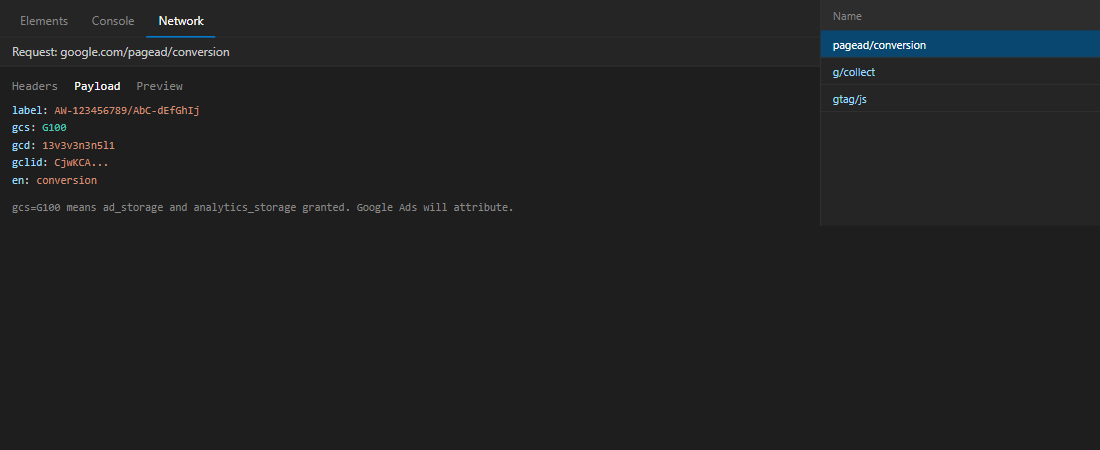
Click a conversion request and open the Payload or Query String Parameters tab. Look for:
gcs– Google Consent State. This is the key one.gcd– Google Consent Default (legacy format).
What gcs values mean:
G100– ad_storage and analytics_storage granted. Good. Google Ads will attribute.G111– all denied. Conversion may be modeled but not fully attributed.G110– mixed (e.g. ad_storage granted, analytics denied). Check your setup.- Missing gcs – Consent Mode may not be sending signals. Google may suppress attribution.
If you accepted consent and the conversion request shows gcs=G111 or no gcs at all, Consent Mode is not updating when users accept. See why consent state never updates.
4. Consent Mode impact (short)
If you use Google Tag Manager, Preview mode shows which tags fire. Useful, but it does not tell you if consent is correct or if the request reached Google.
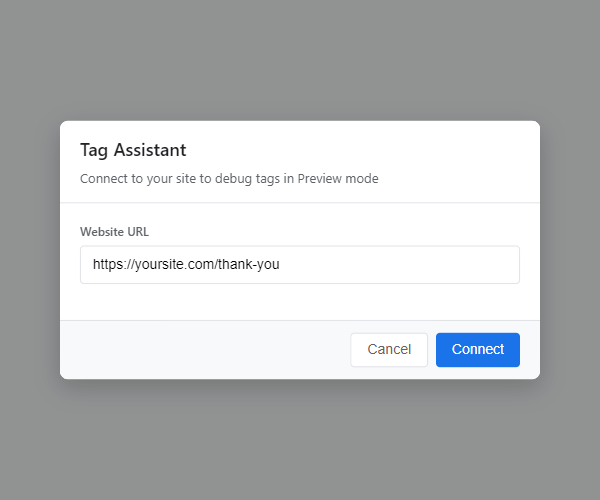
Step 1: Enable GTM Preview
In GTM, click Preview. Enter your site URL. A new tab opens with the GTM debug panel. Use a fresh incognito window for this so you test the consent flow.
Step 2: Trigger Conversion and Check Tags
Accept consent, then go to your conversion page. In the GTM Preview panel, expand the conversion page view. Look for your Google Ads Conversion tag. If it shows Fired, the tag ran.
GTM Preview does not show: (1) whether the request reached Google, (2) whether gcs was sent, (3) whether Google Ads will attribute. Always confirm with the Network tab. See GTM Consent Mode setup if your conversion tag is not firing.
For Consent Mode v2 implementation details, use the manual Consent Mode v2 implementation guide.
Note: Google Ads reporting delays and attribution windows are not considered tracking failures. Conversions may take 24-48 hours to appear in Google Ads, and attribution windows can be 30-90 days. This test checks technical behavior, not reporting delays.
Method 4: Test Before vs After Consent
The most important test is verifying that conversions DON'T fire before consent (violation) and DO fire after consent (correct behavior).
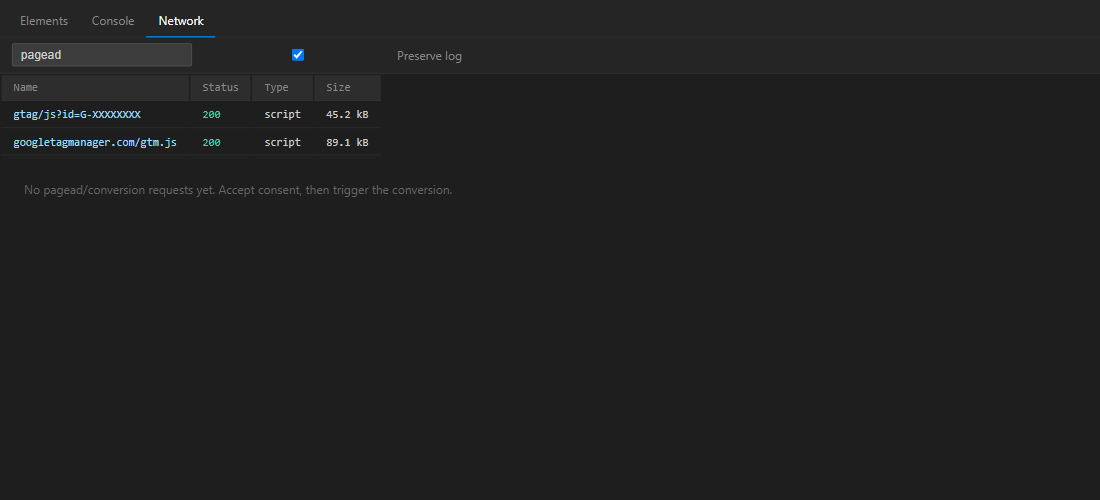
Test 1: Before Accepting Consent
Fresh incognito. DevTools open. Filter: pagead. Do not click Accept. Go straight to your thank-you or conversion page (you may need to complete a test purchase or use a direct URL).
Expected: No conversion requests. If you see conversion requests before consent, that is a violation. See tracking before consent.
Test 2: After Accepting Consent
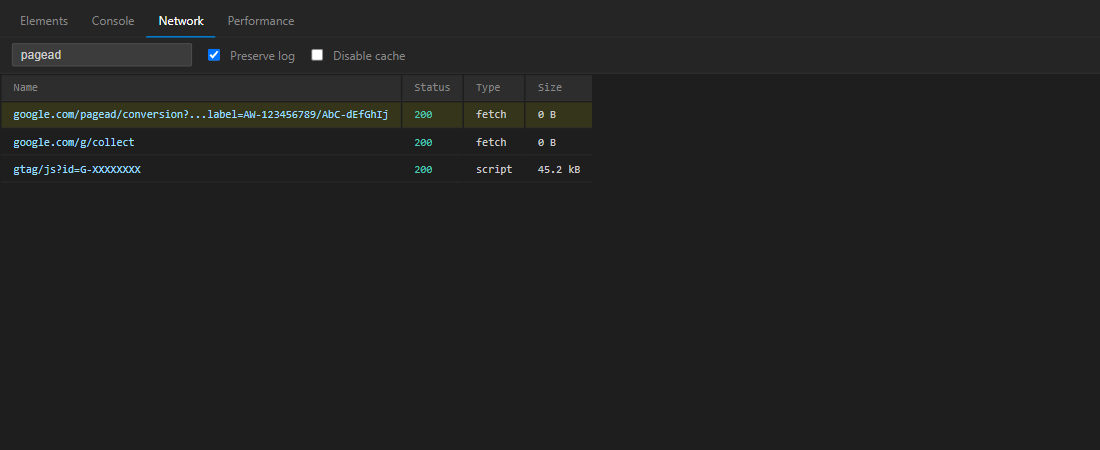
Same session. Click Accept on the banner. Then go to your conversion page.
Expected: You should see conversion requests. If not, check: (1) Consent Mode v2 not updating when users accept, (2) conversion tag not gated by consent in GTM, (3) timing (tag fires before consent update completes).
Test 3: After Rejecting Consent
In a fresh session, reject/decline consent, then navigate to a conversion page.
Expected behavior (with Consent Mode v2): You might see conversion requests, but they should include consent signals indicating 'denied'. Google can model these conversions if Consent Mode v2 is properly configured. Without Consent Mode v2, you shouldn't see conversion requests at all (tracking should be blocked).
Troubleshooting Cheat Sheet
Use this to interpret what you see:
| What you see | Meaning | Next step |
|---|---|---|
| Conversion requests before consent | Violation. Tracking fires too early. | Fix tracking before consent |
| No conversion requests after consent | Tag not firing or blocked by consent. | Check consent updates |
| Requests with gcs=G111 after Accept | Consent never updates. CMP not wired. | Wire CMP to gtag |
| Requests with gcs=G100 after Accept | Consent correct. Request sent. | Wait 24-48h for Ads. Check gclid if from paid. |
| No pagead/gtag requests at all | Tag not installed or blocked. | Diagnose broken tracking |
Common Issues You Might Discover
When testing conversion tracking after consent, you might discover several common problems:
Issue 1: Conversions Fire Before Consent
You see conversion requests in the Network tab before accepting consent. This is a violation - conversions should only fire after users grant consent.
Why it happens: Conversion tags are configured to fire on page load or too early in the user journey, before consent is collected. This is one of the most common tracking before consent issues.
Issue 2: Conversions Don't Fire After Consent
You accept consent, but no conversion requests appear when you trigger a conversion. The conversion tag exists, but it's not firing.
Why it happens: Conversion tags might be blocked by consent settings, Consent Mode v2 isn't updating when users accept, or tags are configured incorrectly in GTM.
Issue 3: Conversions Fire But Aren't Attributed
You see conversion requests in the Network tab, but they don't appear in Google Ads. The requests are being sent, but Google Ads isn't crediting them to your campaigns.
Why it happens: Consent signals are missing or incorrect in the conversion requests. Without proper consent signals, Google Ads may suppress conversion attribution. This is why Google Ads shows 0 conversions but GA4 shows events.
Issue 4: Conversions Only Work for Some Users
Conversions fire for users who accept consent, but not for users who reject. Without Consent Mode v2, you lose conversion data for all users who reject cookies.
Why it matters: If 30% of users reject cookies, you're losing 30% of conversion data. Google Ads optimizes on incomplete information, reducing campaign performance.
What to Check in Google Ads (After Testing)
After you've verified that conversion requests are firing correctly in the browser, check Google Ads to see if conversions are being attributed:
Check 1: Conversion Actions
Go to Google Ads → Tools & Settings → Conversions. Check if your conversion actions are set up correctly and have the right conversion labels.
Check 2: Recent Conversions
In the Conversions section, look for recent conversions. Note that conversions can take 24-48 hours to appear in Google Ads, so don't expect immediate results.
Important: If you see conversion requests in the browser but no conversions in Google Ads after 48 hours, there's likely a consent or attribution issue.
Check 3: Conversion Value and Attribution
Verify that conversion values are being recorded correctly (if you're tracking value) and that attribution windows are set appropriately. Remember that attribution windows can be 30-90 days, so conversions might be attributed to clicks from weeks ago.
Why Manual Testing Has Limitations
Manual testing is useful for understanding how conversion tracking works, but it has significant limitations:
- Time-consuming - Testing multiple scenarios (before consent, after accept, after reject) takes significant time
- Only shows one scenario - You're testing one user journey, not all possible paths
- Misses timing issues - You might miss cases where conversions fire too early or too late
- Doesn't check all pages - Conversion pages might be on different URLs (checkout, thank-you) that you need to test separately
- Can't verify consent signals - You can see requests fire, but verifying consent signals in requests requires deeper inspection
- Doesn't check server-side tracking - If you use server-side conversion tracking, browser testing won't catch those issues
A comprehensive diagnostic scan automates all of these tests, checks behavior across the entire user journey, and gives you a complete picture of what's working and what's broken. For a full breakdown of all the ways conversion tracking can break, see why Google Ads conversions break.
For common consent mode mistakes that break attribution, review common Consent Mode implementation mistakes.
Test conversion tracking automatically
Find out in 30 seconds:
- Are conversions firing?
- Is consent blocking them?
- Is Google Ads receiving them?
🔍 Scan your site and see exactly why conversions aren't showing.
Run Free Scan →Manual Testing vs Automated Scan
| Method | Best for | Limitation |
|---|---|---|
| Manual (this guide) | Debugging details | Slower and less comprehensive |
| Automated scan | Full coverage quickly | Less granular than hands-on debugging |
Next Steps: Get a Complete Conversion Tracking Diagnostic
Manual testing helps you understand conversion tracking, but for a complete diagnostic that checks all scenarios automatically, run our free scan. The scan verifies:
- If conversion tracking code is detected
- If conversions fire before consent (violation)
- If conversions fire after consent (correct behavior)
- If conversions are blocked by consent issues
- If Consent Mode v2 is configured correctly
- If consent updates fire when users accept
Run a complete conversion tracking diagnostic
Find out in 30 seconds:
- Are conversions firing?
- Is consent blocking them?
- Is Google Ads receiving them?
🔍 Scan your site and see exactly why conversions aren't showing — full report across consent states, no manual DevTools required.
Run Free Scan →See a sample report: View sample report →
Related guides:
Part of the Google Ads conversion tracking series:
Back to: Why Google Ads Conversions Break